How to Get y=mx+b on a Google Sheets Graph (2026 Guide)
 Carlos GarciaPublished Updated
 The equation y = mx + b is the slope-intercept form of a straight line, and it shows up everywhere from middle school math to data science regression. If you have a scatter plot in Google Sheets and you want the actual equation of the best-fit line, Sheets has a built-in option that surfaces both the line and the equation in two clicks — but you have to know where to find it. Most people end up calculating the slope and intercept manually because they never spot the option.
How to Get y=mx+b on a Google Sheets Graph
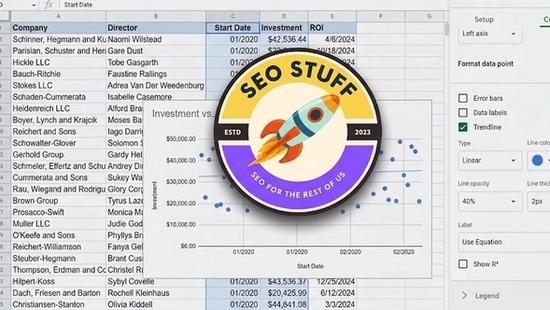
To display the y=mx+b equation on a Google Sheets graph, double-click the chart to open the Chart Editor, switch to the Customize tab, click Series, scroll to the Trendline section, check the Trendline box, set Type to Linear, then set Label to "Use Equation". The equation appears on the chart in slope-intercept form.
Behind the scenes, Google Sheets is computing the line of best fit using ordinary least squares regression on your scatter plot data. The slope (m) and the intercept (b) are derived from the same math that the SLOPE and INTERCEPT functions calculate, just packaged into a visual annotation.
The trendline option only appears on scatter charts and certain bar/column charts. If you have a line chart instead of a scatter chart, you will not see the trendline option — switch the chart type first.
Building data visualizations for your marketing analytics work and want a sanity check on the underlying numbers? Get a free SEO Stuff audit and we will review the data pipeline.
Step-by-Step: Add the Equation to a Chart
The complete process takes about 30 seconds once you know the click path.
- Set up your data with x-values in one column and y-values in the next. Headers in row 1.
- Highlight the data range.
- Click Insert > Chart from the menu bar.
- In the Chart Editor that appears on the right, switch the chart type to Scatter chart (under the Setup tab).
- Switch to the Customize tab in the Chart Editor.
- Expand the Series section.
- Scroll down and check the Trendline box.
- Make sure Type is set to Linear.
- Change the Label dropdown from "None" to "Use Equation".
- Adjust Line opacity, color, and thickness as desired.
The equation appears near the trendline in the format y = mx + b with actual numerical values plugged in.
Free audit
Where do you stand in AI search?
A manual SEO + AI search audit of your site: how ChatGPT, Gemini, Perplexity and Claude read and cite it today, and what to fix first. Report within 48 hours, no credit card.
Get my free auditOr have it all done: AI SEO services, $999 once
How to Calculate Slope and Intercept Without a Chart
If you want the slope and intercept values as numbers in cells (rather than on a chart), Sheets has dedicated functions.
The SLOPE function returns m:
=SLOPE(B2:B20, A2:A20)
The first argument is the range of y-values (dependent variable). The second argument is the range of x-values (independent variable).
The INTERCEPT function returns b:
=INTERCEPT(B2:B20, A2:A20)
Same argument order — y-values first, x-values second.
Together these two formulas produce the same m and b that the chart trendline would display. The advantage of having them as values is that you can use them downstream — for example, to predict new y-values for given x-values with =m*x + b.
How to Display R² (R-Squared)
The trendline option also lets you display the R-squared value, which measures how well the line fits the data. R² ranges from 0 (no fit) to 1 (perfect fit).
In the Trendline section of the Chart Editor, change Label to "Use Equation" and check the R² checkbox below it. The chart now shows both the equation and the R² value.
For just the R² value as a cell, use the RSQ function: =RSQ(B2:B20, A2:A20).
Need help connecting your data analysis work to actual marketing outcomes? SEO Stuff's free audit ties analytical work back to SEO performance.
When to Use a Linear Trendline
Linear regression is the right tool when you have a clear cause-and-effect relationship between two numeric variables and you suspect (or want to test) a straight-line relationship. Common cases include price vs demand, ad spend vs leads, time vs cumulative metric, dose vs response, or any "input affects output" scenario.
It is the wrong tool when your data is categorical, when the relationship is obviously curved, when you have outliers that dominate the fit, or when you have fewer than 5-10 data points (the trendline will fit but the R² is unreliable).
Limitations of the Sheets Trendline
A few things worth knowing. The trendline label format does not let you control the number of decimal places — Sheets picks defaults that often round too aggressively. The trendline does not extrapolate beyond your data range visually (though the equation lets you compute extrapolated values yourself). Sheets supports linear, exponential, polynomial, logarithmic, power, and moving average trendlines but does not let you set custom equations. And the regression is unweighted — if some data points are more reliable than others, you cannot tell Sheets to weight them.
Want help building data-driven marketing reports that lead to better decisions? Request a free SEO Stuff audit and we will review your analytical workflow.
Linear Trendline vs Alternatives in Sheets
Several other trendline shapes are available, and the right one matches the underlying data pattern.
Linear vs Exponential
Use exponential when y grows or decays by a constant percentage per unit of x. Population growth, compound interest, viral spread. The equation form is y = a * exp(b*x).
Linear vs Polynomial
Use polynomial when the data has curves — single inflection (quadratic), S-curves (cubic), or more complex shapes (higher degrees). Polynomial fits can overfit small datasets, so use sparingly.
Linear vs Logarithmic
Use logarithmic when y changes quickly at low x values and then levels off. Diminishing returns scenarios, like ad spend vs incremental sales above a certain budget.
Linear vs Moving Average
Use moving average when the data is noisy time series and you want to smooth out variations rather than fit a line. The trendline shows the smoothed curve rather than a model equation.
Linear in Sheets vs Excel LINEST
Excel's LINEST function returns more detailed statistical output (standard errors, F statistics, degrees of freedom) than Sheets' SLOPE and INTERCEPT. For light regression work, Sheets is sufficient. For formal statistical analysis, Excel LINEST or a Python notebook is the better tool.
Final Thoughts
Adding y = mx + b to a Google Sheets chart is one of those quietly useful skills that pays off whenever you need to communicate a trend to a non-technical audience. The line and the equation together let people read both the direction and the strength of the relationship at a glance. For more advanced data analysis in Sheets, our walkthrough of how to create a pivot table in Google Sheets covers the next layer up when you need to summarize across categories rather than fit a line.
Ready to turn your marketing data into clear, actionable insights? Get a free SEO Stuff audit and we will help you connect the analysis to real growth.
Want this done for you?
SEO Stuff gets businesses cited by ChatGPT, Gemini, Perplexity and Claude, and ranking in Google. Start with the free audit, a call, or the package.
See where you stand
A free, manual SEO + AI search audit of your site, with a report within 48 hours. No credit card, no sales call.
Get my free auditTalk it through
A free 15-minute call with the founder about whether AI search is a meaningful opportunity for your business.
Free strategy callHave it done
The Done-For-You Package: audit, 10 pages of content, 3 DR50+ placements, dashboard. $999 once, delivered in 21 business days.
See the package

