
How to Create a Pivot Table in Google Sheets (2026 Guide)
 Carlos Garcia5/15/2026
If you've got a spreadsheet with hundreds (or thousands) of rows of data and you need to summarize it, totals by category, averages by month, counts by region, a pivot table is the fastest, most flexible tool in Google Sheets for the job. Pivot tables let you drag fields into rows, columns, and values to reshape your data into the exact summary you need, without writing a single formula. This article walks through exactly how to create a pivot table in Google Sheets in 2026, the most useful settings to know, and the practical scenarios where pivot tables save hours of manual work.
Free SEO + AI Search Audit. Pivot tables turn spreadsheet data into clear answers. But what about your website data — how it performs in Google AND in AI search engines like ChatGPT, Claude, Perplexity, and Gemini? Run your free audit → to see exactly where your site stands across every major search and AI platform in 60 seconds.
What Is a Pivot Table in Google Sheets?
In simple terms, a pivot table in Google Sheets is a tool that takes a long table of detailed data and summarizes it into a much smaller table that answers a specific question — like "total sales by region" or "average rating per product" or "number of orders per month." You don't write formulas. You drag fields into the pivot table editor, and Google Sheets computes the summary automatically.
Think of a pivot table as a smart filter combined with a calculator. You point it at raw data, tell it which fields to group by (rows and columns), what to compute (sum, count, average, etc.), and it produces a clean summary table. Change your mind about how you want to slice the data, drag fields around, and the summary instantly updates.
Pivot tables are one of the oldest and most reliable analytics tools in spreadsheets — they predate Google Sheets by decades (Excel's pivot tables date to the 1990s). The Google Sheets version covers about 95% of what most users need, with the advantage that it's free, browser-based, and collaborative.
When You Need a Pivot Table
Pivot tables shine in two specific situations: when your dataset is too big to summarize manually, and when you need to look at the same data from multiple angles quickly. Some signs you should reach for a pivot table:
- Your data is in a long, detailed format (one transaction per row, one event per row) and you need a rolled-up summary
- You're about to write a long series of `SUMIF` or `COUNTIF` formulas
- You need to group by a category and compute totals or averages
- You want to look at the same data sliced by region, then by month, then by product, without rebuilding it
- You need to find the top 10 of anything from a larger list
If you ever find yourself manually filtering and copying subtotals into a separate sheet, that's the universal signal that a pivot table would save you an hour.
How to Create a Pivot Table in Google Sheets (Step-by-Step)
Building your first pivot table takes about a minute. Here's the basic flow.
- Select your data. Click any cell inside your data range, or highlight the full range manually. Google Sheets is usually smart enough to detect the boundaries automatically.
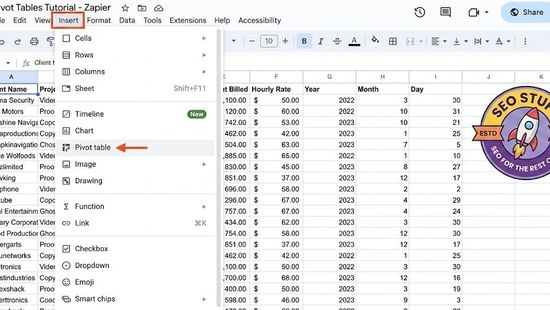
- Go to the Insert menu and click Pivot table.
- In the popup, confirm the Data range is correct. Choose whether to put the pivot table in a New sheet (recommended) or Existing sheet. Click Create.
- The Pivot Table editor opens on the right side of the screen. Your pivot table is empty at first — just an empty grid waiting for you to add fields.
- Add fields to the four sections in the editor:
- Rows — fields that become rows in your summary (typically your main grouping field, like "Region" or "Product") - Columns — fields that become columns (often a secondary grouping, like "Year" or "Channel") - Values — what gets computed (typically a numeric field, like "Sales" or "Quantity") - Filters — fields that limit which rows from the source data get included
- For each Value, choose the aggregation function (SUM, COUNT, AVERAGE, MIN, MAX, MEDIAN, etc.). Google Sheets defaults to SUM if the field is numeric and COUNTA if it's text.
- The pivot table updates in real time as you drag fields in.
That's it. Your pivot table is live. To change it, just drag fields in/out of the editor — no rebuilding required.
Useful Pivot Table Features You Should Know
Once you've built a few basic pivot tables, these are the features that unlock the next level of usefulness.
Sorting and Filtering
Within the pivot table, you can sort rows or columns by any value field — ascending or descending. The Order dropdown in the editor lets you sort alphabetically or by a specific value. To filter, drag a field into the Filters section and choose which values to include or exclude. This is especially useful for excluding nulls, blanks, or specific categories without touching the source data.
Calculated Fields
If the summary you need isn't a straight SUM or AVERAGE — say, profit margin (revenue minus cost, divided by revenue) — use a Calculated Field. In the Values section, click Add → Calculated Field and write a formula referencing the source columns. The pivot table computes it per row.
Grouping Dates
If your source data has a date column, the pivot table can group dates automatically by day, week, month, quarter, or year. Drag the date field into Rows, then right-click it in the pivot table itself → Create pivot date group → pick your grouping. This is far cleaner than adding helper columns in the source data.
Show as Percent of Total
For value fields, click the Summarize by dropdown to change the aggregation (SUM, AVG, etc.), and use Show as to display each cell as a percentage of the row total, column total, or grand total. Excellent for share-of-mix reports.
Free SEO + AI Search Audit. Pivot tables let you slice the same data by region, by month, by category. The same principle applies to your website — but most site owners only ever look at one slice (organic Google traffic) and miss the bigger picture across AI search. Run a free audit of exactly how your site performs in Google AND in ChatGPT, Claude, Perplexity, and Gemini — the four AI platforms now driving real referral traffic for early movers.
When Should You Use Pivot Tables?
Pivot tables aren't overkill for any data summary, but they're especially valuable in these scenarios.
1. Monthly or Quarterly Performance Reports
Anyone doing recurring reporting — sales, marketing, ops, finance — should be using pivot tables. Connect a pivot table to your raw transactions or events, and your monthly report becomes a refresh-and-export operation instead of a manual rebuild.
2. Top-N Analysis
"What were our top 10 products by revenue last quarter?" Pivot the data with Product in Rows, Revenue in Values (as SUM), sort descending, and there's your answer. Drag in Region or Customer Segment as a column and you immediately see top performance broken out further.
3. Multi-Dimensional Comparisons
When you need to compare metrics across two or more dimensions — like channel performance by region, or product mix by quarter — a pivot table is the only practical option short of writing custom formulas for every combination.
4. Cleaning Up Messy Data
Pivot tables surface inconsistencies fast. If you have data where "Region" should have 5 values but the pivot shows 8 (with "West " and "WEST" and "west" each appearing as separate rows), you've just spotted dirty data. Fix at the source, refresh the pivot, done.
Free SEO + AI Search Audit. Cleaning up spreadsheet data prevents bad business decisions. Cleaning up your website data — consistent metadata, clean schema markup, deduplicated content — prevents bad search rankings. Get a free audit of where your site has the equivalent of "WEST" vs "west" inconsistencies in its SEO data, and what to fix first.
5. Sharing Live Summaries with a Team
Because Google Sheets is collaborative and pivot tables update with the source data automatically, a single pivot table can serve as a shared dashboard. Drop the link in Slack and the whole team is looking at the same numbers, refreshed in real time.
Limitations of Google Sheets Pivot Tables
Google Sheets pivot tables are good, but they're not perfect. Here's what to watch out for.
Performance degrades on very large datasets. Pivot tables on more than ~50,000 rows can get slow, and pivot tables on hundreds of thousands of rows can crash the tab. For larger data, use BigQuery (which Google Sheets has a connector for) or move the analysis into Looker Studio.
Less powerful than Excel's pivot tables. Excel offers more advanced features like Power Pivot, model-based pivots, and OLAP connections. Google Sheets covers the basics well but doesn't match Excel's depth for advanced analysts.
Calculated fields are limited. The Calculated Field editor doesn't support all spreadsheet functions, and complex calculated logic sometimes has to be done in helper columns in the source data instead.
Pivot tables don't recompute on data deletion in real-time the same way Excel does. Sometimes you need to manually refresh or recreate the pivot table after major source data changes — particularly if rows are deleted entirely versus blanked out.
Pivot table source ranges don't auto-expand. If you add rows below the source range and forget to update the pivot table's source range, your new rows won't be included. Either select the entire column from the start, or convert the source to a named range you can update centrally.
Pivoting Boolean data is awkward. If you have TRUE/FALSE columns, the pivot table summarizes them in counterintuitive ways (TRUE counts as 1, FALSE as 0). Sometimes simpler to convert to "Yes/No" text upfront.
Final Thoughts
Pivot tables are one of those tools that, once you understand them, you can't imagine going back to manual summing. The first time you replace a 30-minute manual spreadsheet rebuild with a 30-second pivot table refresh, you'll wonder why you didn't learn this years ago.
That said, summarizing data well is only valuable if you're working on the right data in the first place. For most businesses in 2026, the most important "data" isn't internal — it's how your site is performing across Google and the new generation of AI search engines, where buyers increasingly find products and services. Most teams have no visibility into their performance on ChatGPT, Claude, Perplexity, and Gemini — the four platforms quietly driving more referral traffic every month. Run a free audit to see exactly where your site stands across Google AND every major AI search platform — and which fixes will move your traffic the fastest this quarter.


