
What Does GA Stand For in Google Analytics? 2026 Guide
 Carlos Garcia5/20/2026
If you've been reading marketing dashboards, talking to your SEO agency, or trying to follow a Google Analytics tutorial and someone keeps saying "GA," you're not the only person who's wondered exactly what those two letters mean. GA stands for Google Analytics — the most widely used web analytics platform in the world. But in 2026 the GA acronym has a few flavors (GA4, GA Premium, the now-retired Universal Analytics), and the metrics inside it have shifted. This article covers what GA is, what each version means, what the core metrics measure, and how to actually use GA today.
Free SEO + AI Search Audit. GA tells you how visitors arrive and behave on your site. A free SEO + AI search audit tells you how findable your site is in the first place — across Google AND in AI search engines like ChatGPT, Claude, Perplexity, and Gemini. Run your free audit → to see exactly where your site stands in 60 seconds.
What Does GA Stand For?
In simple terms, GA stands for Google Analytics, Google's free web analytics platform. It's the tool that tells you how many people visit your site, where they come from, what they do once they arrive, and whether they convert into customers.
GA has been around since 2005, when Google acquired the analytics company Urchin and rebranded it. Over the years it's gone through several major versions, which is why people in 2026 might mean slightly different things when they say "GA."
The Versions of GA (And Which One People Mean Today)
Three versions of GA matter in 2026.
GA4 (Google Analytics 4)
GA4 is the current default version of Google Analytics. It launched in October 2020 and became the only supported version on July 1, 2023, when Google sunsetted Universal Analytics. If someone says "GA" in 2026 without qualification, they almost always mean GA4.
GA4 is built around an event-based data model. Every interaction — page view, scroll, click, video play, purchase — is an event with attributes. This is a major departure from Universal Analytics, which used a session-based model.
Universal Analytics (UA)
Universal Analytics is the older version that GA4 replaced. UA tracked data using sessions, pageviews, and a hit-based model that was great for traditional websites but didn't translate well to apps or modern single-page applications.
Google stopped collecting UA data on July 1, 2023. UA properties were read-only for a year after that and then permanently deleted. If you're seeing references to "Universal Analytics," "UA tracking," or a tracking ID starting with `UA-`, that's the old version, which no longer runs.
GA360 / GA4 360
GA360 (sometimes "Google Analytics 360") is the paid enterprise version. It includes higher data limits, advanced features like unsampled reports, BigQuery export with no row limits, and a service-level agreement. Pricing starts at roughly $150,000/year and is sold through Google Cloud sales reps.
For most small and mid-sized businesses, free GA4 is sufficient. GA360 only makes sense at enterprise scale with very high traffic volumes.
What GA Measures
GA4 collects data about your website (or app) visitors and their behavior. The core metric categories:
Users and Sessions
- Users: unique visitors over a time period
- New users: visitors who haven't been seen before
- Sessions: a group of interactions from a single user within a time window (30 minutes of inactivity ends a session)
In GA4, "session" is less central than in Universal Analytics. The event model is the foundation, and sessions are derived.
Engagement Metrics
GA4 introduced engagement as a primary concept:
- Engaged sessions: sessions that last 10+ seconds, fire a conversion event, or include 2+ pageviews
- Engagement rate: percentage of sessions that were engaged
- Average engagement time: average time users spent actively viewing your site
Engagement rate is roughly the inverse of bounce rate from the old GA — but more accurate, because GA4 only counts non-engagement, not any single-page visit.
Acquisition Metrics
Where your visitors come from:
- Direct: someone typed your URL directly
- Organic search: clicked through from Google or another search engine
- Paid search: clicked through from a paid ad
- Social: came from a social platform
- Referral: came from another website
- Email: came from an email campaign (with UTM tags)
Conversion Events
GA4 lets you mark any event as a "conversion." Common ones: purchase, sign_up, generate_lead, form_submit. The conversion event count and rate tell you how many visitors are taking the actions you actually care about.
Free SEO + AI Search Audit. GA tells you what visitors do once they land. A free SEO audit tells you whether visitors are finding your site at all — and what's blocking them from showing up in AI search citations. Get a free audit of how your site performs across every major search and AI platform.
How to Set Up GA on Your Site
The basic flow:
Step 1: Create a GA4 Property
Go to analytics.google.com, sign in with a Google account, and click Admin → Create → Property. Give it your site name and set the time zone and currency.
Step 2: Create a Data Stream
In your new property, click Data Streams → Add stream → Web. Enter your URL and stream name. GA4 generates a Measurement ID (looks like `G-XXXXXXXXXX`).
Step 3: Install the Tracking Code
Three common ways to install GA4:
- gtag.js snippet: copy the JavaScript snippet from GA4 and paste it into the `<head>` of every page on your site.
- Google Tag Manager: create a GA4 Configuration tag in GTM with your Measurement ID. This is the recommended approach for most sites.
- CMS plugin: WordPress, Shopify, Wix, and most other platforms have GA4 plugins that just take your Measurement ID and handle the rest.
Step 4: Verify Tracking
In GA4, go to Reports → Realtime and visit your site in another browser tab. You should see your visit appear within seconds. If not, check the tag is firing using Chrome DevTools Network tab (look for requests to `google-analytics.com/g/collect`).
Step 5: Set Up Conversions
Click Admin → Events and mark relevant events as conversions. Common ones to mark: `purchase`, `generate_lead`, `sign_up`, `form_submit`. You can also create custom events for actions GA4 doesn't track automatically.
When to Use GA (And What For)
GA4 is useful for several distinct purposes.
1. Understanding Where Traffic Comes From
The most basic use: see what channels (organic, paid, social, direct, referral) are bringing visitors. This guides your marketing investment decisions.
2. Measuring Conversion Rates
Track which traffic sources convert at what rate. If organic traffic from Google converts at 3% but social traffic converts at 0.5%, you know where to focus.
3. Funnel Analysis
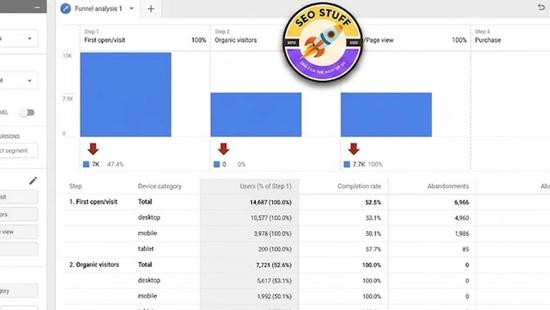
GA4's Funnel exploration report shows you where visitors drop off in a multi-step process (e.g., product page → cart → checkout → purchase). Identifying drop-off points reveals where to optimize.
4. User Behavior Analysis
What pages do users visit? In what order? Where do they engage longest? GA4 path analysis, behavior flow, and engagement reports answer these.
5. Audience Segmentation
Compare segments: new vs returning users, mobile vs desktop, traffic from different countries, users who completed a conversion vs those who didn't. Segmentation reveals patterns that matter.
Free SEO + AI Search Audit. Knowing how visitors behave once they arrive is one part of the puzzle. Knowing whether AI search engines are sending visitors to your site at all is the other. Run a free audit to see exactly where your site stands.
Limitations of GA4
GA4 is powerful but has real limitations.
Sampling on free tier. When you query large date ranges or complex segments, GA4 may sample the data rather than process the full set. For high-traffic sites this matters; for small sites, usually not.
Data retention defaults to short. GA4 keeps event-level data for 2 months by default. You can extend to 14 months in settings, but anything older is aggregated only.
No backward UA data. Universal Analytics data is gone. If you need historical comparisons, you have to export old UA data before deletion or use a third-party tool that preserved it.
Steep learning curve from UA. If you were used to Universal Analytics reports, GA4's interface and event model take time to learn. Many old report names and metrics have changed or been removed.
Cookie restrictions and consent. Increasing privacy regulations (GDPR, CCPA, browser cookie restrictions) reduce the accuracy of GA4 tracking. Consent banners are required in many regions, and "consent mode" partially compensates but doesn't eliminate the gap.
No clickstream data without BigQuery. To do truly custom analysis, you need to enable the BigQuery export. Free tier export is now available (a 2023 change) but requires SQL knowledge.
Common GA4 Questions
A few questions that come up repeatedly.
What's the Difference Between GA and Google Search Console?
GA (Google Analytics) tracks what visitors do on your site after arriving. Google Search Console tracks how visitors arrive from Google specifically — what queries they searched, what pages of yours show up, what your click-through rate is. The two are complementary, not redundant.
Is GA Free?
The standard GA4 product is free. GA360 (enterprise) is paid and starts at ~$150K/year. For most businesses, free GA4 is sufficient.
Is My GA Data Private?
GA4 collects pseudonymous data (no email addresses or names by default) and aggregates it for reporting. Google has access to the underlying data, which is why some businesses move to self-hosted analytics like Plausible or Matomo for privacy reasons. For most sites, GA4 is the standard.
Why Is My GA Data Different From My Server Logs?
GA4 only tracks visitors who allowed JavaScript and didn't block analytics scripts. Server logs include all requests. The two will never match exactly — expect 10-30% lower numbers in GA4 vs raw server logs.
When to Use Alternatives to GA
GA4 is the default, but not always the best fit.
Use Plausible or Fathom when: privacy is paramount, you have low to moderate traffic, and you want simpler reports.
Use Matomo when: you want GA-like depth but self-hosted with full data ownership.
Use Mixpanel or Amplitude when: you're building a product and need deep behavioral analytics on user actions over time, not just web traffic.
Use Adobe Analytics when: you're at enterprise scale and already in the Adobe Experience Cloud.
Final Thoughts
GA stands for Google Analytics, and in 2026 that almost always means GA4. It's free, comprehensive, and the de facto standard for web analytics — but it's also more complex than it used to be, less accurate in a privacy-restricted world, and not always the right tool for every site.
Once GA tells you what visitors do on your site, the next question is whether visitors are reaching your site at all. For most businesses in 2026, traffic increasingly comes from buyers asking AI search engines like ChatGPT, Claude, Perplexity, and Gemini for recommendations. Most teams have no idea where they stand in those AI answers. Run a free audit to see exactly where your site performs across Google AND every major AI search platform — and which fixes will move your traffic the fastest this quarter.


