
How to Make a Pie Chart in Google Sheets (2026 Guide)
 Carlos Garcia5/15/2026
If you've got a small dataset — sales by region, market share by competitor, budget by category — and you want a clean visual that shows the relative proportions, a pie chart in Google Sheets gives you a publication-ready visualization in about 30 seconds. This article walks through exactly how to make a pie chart in Google Sheets in 2026, the variations available, how to customize it, and the practical scenarios where a pie chart is the right call (and when you should use a different chart type instead).
Free SEO + AI Search Audit. Pie charts visualize your business data. But how visible is your business in the searches your customers actually run — in Google AND in AI platforms like ChatGPT, Claude, Perplexity, and Gemini? Run your free audit → to see exactly where your site stands across every major search and AI platform in 60 seconds.
What Is a Pie Chart in Google Sheets?
In simple terms, a pie chart in Google Sheets is a circular chart divided into slices, where each slice represents a category's share of the total. The size of each slice is proportional to the category's value. Pie charts make it easy to see at a glance which categories dominate and which are minor — and how each compares to the whole.
Google Sheets supports three pie chart variations:
- Standard pie chart: the classic circular chart with slices radiating from the center
- Doughnut chart: same as a pie, but with a hole in the middle (useful for summary text in the center)
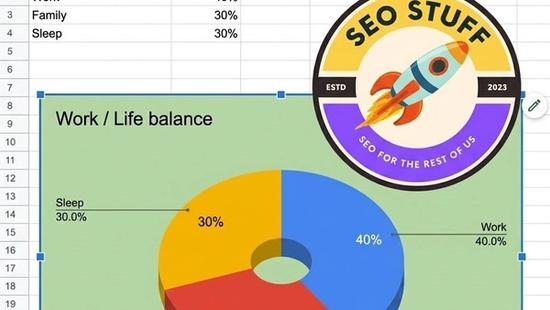
- 3D pie chart: a perspective view that gives the chart depth (visually appealing but generally less accurate for comparing slice sizes)
Pie charts work best with 2-7 categories. With more than 7, the slices get too small to compare visually and your chart turns into noise.
How to Make a Pie Chart in Google Sheets (Step-by-Step)
Building a pie chart takes about 30 seconds once you've got your data organized.
- Organize your data. Pie charts need two columns: one for category labels (text), one for values (numbers). Example: column A has "North," "South," "East," "West"; column B has the sales numbers for each.
- Select your data range. Highlight both columns, including the header row.
- Go to Insert → Chart in the menu bar.
- Google Sheets automatically inserts a chart. If it picks the wrong chart type, the Chart editor opens on the right side of the screen.
- In the Chart editor's Setup tab, click the Chart type dropdown and select Pie chart (or Doughnut chart, or 3D pie chart).
- Verify the Data range, Label column, and Value column are correct. The Chart editor lets you adjust these if Google Sheets guessed wrong.
- Customize the appearance in the Chart editor's Customize tab — colors, fonts, slice labels, position of the legend, title text, and more.
- Click outside the chart to deselect. Your pie chart is now embedded in your sheet.
To move or resize the chart, click it once to select, then drag the corners. To return to the editor, double-click the chart.
Useful Customizations You Should Know
A default Google Sheets pie chart looks fine, but a few customizations make it presentation-ready.
Slice Labels (Show the Numbers)
By default, the legend shows category names but not values. To put the actual values on the chart:
- In the Chart editor's Customize tab, expand Pie chart
- Set Slice label to: Value, Percentage, Category, or Category and percentage
- Adjust the label font size and color for readability
Showing percentages on each slice is usually the most useful — viewers can immediately see "the North region is 32% of total sales" without doing math.
Color Customization
Google Sheets picks colors automatically, but you can override them:
- In the Customize tab, expand Pie slice
- Click any slice's color square to change it
- Use brand colors for client presentations
- Use red/yellow/green for performance-themed pies (good/okay/bad)
Exploded Slices (Pull One Out for Emphasis)
To draw attention to a specific slice — say, the highest-grossing region — "explode" it by pulling it away from the center:
- In Pie slice customization, find the slice you want to emphasize
- Set Distance from center to a small percentage (5-10% usually looks right)
- The slice pulls outward, making it visually distinct
Adding a Center Hole (Doughnut Chart)
For a more modern look, switch to a doughnut chart and put summary text in the middle:
- In the Setup tab, change Chart type to Doughnut chart
- In Customize → Doughnut hole, adjust the size of the hole
- Add a Title with summary info — total sales, total budget, etc.
Free SEO + AI Search Audit. Customizing a pie chart so the right slice stands out is exactly the kind of detail that makes data presentations work. The same attention-to-detail is what separates websites that rank in Google and AI search from those that don't. Run a free audit of exactly how your site performs across Google AND every major AI search platform — and where the biggest gaps are.
Legend Position
The default legend sits to the right. To move it:
- In Customize → Legend, set Position to Top, Right, Left, Bottom, or None
- Smaller charts benefit from a top or bottom legend; larger ones look balanced with a side legend
When Should You Use a Pie Chart?
Pie charts are widely overused — many situations call for a different chart type. Here's when a pie chart is genuinely the right tool:
1. Showing Share of a Whole (2-7 Categories)
This is the textbook pie chart use case: when you want to show how a total breaks down into parts. Market share, budget allocation, sales by region, traffic by source — all naturally pie-shaped data.
2. Composition Snapshots in Reports
For one-time visualizations in slide decks, reports, or one-page summaries, a pie chart is fast to build, easy to read, and immediately recognizable. Good for executive audiences who skim.
3. Comparison Across Two Pies
Two pie charts side-by-side comparing the same categories at different points in time (e.g., 2024 sales mix vs 2025 sales mix) can effectively show how composition has shifted.
Free SEO + AI Search Audit. Reports and dashboards are great. But before someone reads your beautiful pie chart, they have to find you in the first place. Get a free audit of how your site shows up in Google AND in ChatGPT, Claude, Perplexity, and Gemini — the four AI search engines now driving real referral traffic in 2026.
4. Communicating to Non-Technical Audiences
Pie charts are universally understood. For audiences who'll glaze over at a bar chart with axes and gridlines, pies are friendlier.
When NOT to Use a Pie Chart
Just as important as knowing when to use a pie chart is knowing when to skip it.
More than 7 categories? Use a horizontal bar chart instead. Slices smaller than 5% become unreadable.
Negative numbers? Pie charts can't show them. Use a bar chart.
Tracking change over time? Use a line chart or stacked area chart. Pies show a snapshot, not a trend.
Comparing multiple data points across categories? Use a grouped or stacked bar chart, which packs more information into the same space.
Categories with very similar values? The human eye is bad at comparing similar-sized pie slices. A bar chart makes the differences much easier to see.
Limitations of Pie Charts in Google Sheets
Slice ordering is automatic. Google Sheets sorts slices by data order, not by size. To get the largest slice first (the convention for pie charts), sort your source data in descending order before building the chart.
You can't combine small slices into "Other" automatically. If you have 15 categories and want the bottom 8 grouped as "Other," you have to do that grouping manually in a helper range.
3D pie charts distort perception. The perspective makes back slices look smaller than they are. Stick with flat 2D pie charts when accuracy matters.
Limited to one data series. A standard pie chart can only show one set of values at a time. For multi-series comparison, you need separate pies or a different chart type.
Embedded chart limitations. Once embedded in a sheet, the chart is somewhat awkward to format consistently if you have many across multiple sheets. For polished reporting, consider building in Looker Studio or another dedicated tool.
Mobile viewing is cramped. Pie charts on phone screens lose detail fast. If your audience views dashboards on mobile, test the chart on a small screen before committing.
Final Thoughts
A pie chart in Google Sheets is one of the fastest ways to turn small datasets into a visual story. Used appropriately — 2 to 7 categories, showing a whole-to-parts relationship, snapshot in time — it does the job in 30 seconds and looks professional. Misused (too many categories, time-series data, similar-sized slices), it adds confusion instead of clarity.
The deeper lesson is that picking the right chart type matters more than picking the right colors or fonts. And the same applies to picking the right channels for your business. For most companies in 2026, the channel with the biggest gap isn't social or paid — it's organic search in Google AND in AI platforms like ChatGPT, Claude, Perplexity, and Gemini where buyers increasingly ask AI for product recommendations. Run a free audit to see exactly how your site performs across Google AND every major AI search platform — and which fixes will move your traffic the fastest this quarter.


