
How to Install the Tableau Student Version (2026 Guide)
 Carlos Garcia5/15/2026
If you're a student or instructor at an accredited school, Tableau gives you free, full-featured access to Tableau Desktop, Tableau Prep, and Tableau Cloud through its Academic Programs — and it's one of the most generous "free for students" offers in the entire data and analytics world. This article walks through exactly how to get the Tableau Student version in 2026, what's included, how the verification process works, and how to keep your license active after graduation.
Free SEO + AI Search Audit. Learning data tools is great. Knowing how to make your business or portfolio site discoverable — in Google AND in AI search like ChatGPT, Claude, Perplexity, and Gemini — is the skill that compounds fastest. Run your free audit → to see how your site performs across every major search and AI platform.
What Is the Tableau Student Version?
In simple terms, the Tableau Student version is a free, full-featured, one-year license for Tableau's core analytics products, available to verified students and instructors at accredited educational institutions. It's not a stripped-down trial — you get the same Tableau Desktop that paying enterprise customers use, with full data source connectivity, full feature parity, and no watermarks on your visualizations.
The license is renewable annually for as long as you remain enrolled, and it covers:
- Tableau Desktop: the full authoring application, Mac and Windows
- Tableau Prep Builder: data preparation tool for cleaning and reshaping data before analysis
- Tableau Cloud (1 user license): hosted dashboard sharing platform
This is genuinely one of the best deals in education software. A commercial Creator license retails for around $75/month — about $900/year for what students get free.
Who Qualifies for the Tableau Student License?
Tableau's Academic Programs are open to:
- Students currently enrolled at an accredited college, university, high school, or middle school
- Instructors teaching at accredited educational institutions
- Researchers at qualifying academic institutions (in some cases)
You need to verify enrollment through Tableau's verification partner, typically using either your school email address (.edu domain or international equivalent) or by uploading proof of enrollment (transcript, student ID, enrollment confirmation letter).
The program is global. Students at qualifying institutions in 100+ countries can apply, though the verification process varies slightly by region.
How to Install the Tableau Student Version (Step-by-Step)
The full process takes about 20-30 minutes, though verification can occasionally take a day or two if Tableau needs to manually review your documents.
- Go to the Tableau Academic Programs page at tableau.com/academic/students.
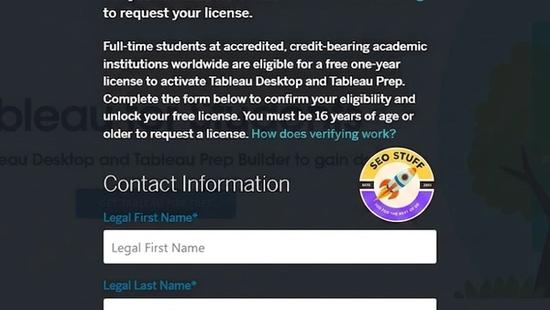
- Click "Get Tableau for Free" and fill out the application form. You'll need to provide your full name, school name, school email address, expected graduation date, and a few details about your program of study.
- Verify your enrollment. This is the main gating step. Tableau uses a verification service that checks your school email against a database of accredited institutions. If your school email is recognized, you'll often get instant approval. If not, you'll need to upload proof of enrollment (a current transcript, student ID, or enrollment letter).
- Wait for the approval email. For most users with a recognized school email, this arrives within minutes. For users requiring manual document review, it can take 1-2 business days.
- Download Tableau Desktop from the link in the approval email. Choose your operating system (Mac or Windows) and download the installer.
- Run the installer. Standard installation flow — accept the license agreement, choose installation location, and let it install. Takes about 5-10 minutes.
- Activate with your student product key. When Tableau Desktop launches for the first time, it'll ask for a product key. Enter the key from your approval email. Tableau Desktop is now fully licensed for one year.
- (Optional) Install Tableau Prep Builder the same way. The approval email includes a separate download link and product key for Prep.
- (Optional) Activate your Tableau Cloud site. The email contains instructions for setting up your personal Tableau Cloud site if you want to publish dashboards online.
You're done. The license is good for 365 days from activation.
Free SEO + AI Search Audit. Building Tableau skills is valuable. So is showing up online where people are searching for your work. Run a free audit to see exactly how your portfolio or business site performs in Google AND in every major AI search platform — Claude, ChatGPT, Perplexity, and Gemini.
What's Different About the Student Version?
Almost nothing. The functionality matches the paid Creator license. The notable differences:
- License duration: 1 year, renewable annually as long as you remain enrolled
- License type: tied to your individual student status, not transferable to others
- Visualizations: no watermarks; your work looks identical to commercial output
- Data connectivity: full access to all native data connectors (SQL Server, Snowflake, BigQuery, Salesforce, Excel, web data connectors, etc.)
- Tableau Public publishing: optional, separate from the student license — Tableau Public is free for everyone regardless of student status
The one practical difference: you can't use the student license for paid client work or commercial purposes. It's strictly for learning, coursework, research, and personal projects.
How to Renew Your Student License
Tableau licenses for students expire after 12 months. To renew:
- Apply again through tableau.com/academic/students about 2-4 weeks before your current license expires.
- Re-verify your enrollment the same way you did initially.
- Receive a new product key in your approval email.
- Update Tableau Desktop by going to Help → Manage Product Keys, removing the old key, and entering the new one.
Most students who renew on time experience zero interruption. If your license lapses, Tableau Desktop will switch to a read-only mode until you re-activate.
When Should You Use the Tableau Student Version?
The student license is the right choice for:
1. Coursework in Data, Business, or Analytics Programs
If you're in a program that uses Tableau in classes (MBA, data analytics, business intelligence, statistics, marketing analytics, etc.), the student license is the obvious choice.
2. Building a Portfolio Before Graduation
If you're planning to apply for jobs in data analytics, BI, or business intelligence after graduation, building a portfolio of polished Tableau dashboards is one of the most effective ways to stand out. Publish them to Tableau Public (free for everyone) and link to them on your resume.
3. Personal Projects and Self-Learning
Even outside coursework, the student license is great for exploring datasets you find interesting — sports stats, public economic data, COVID dashboards, climate data, election data, etc. There's no shortage of practice material.
Free SEO + AI Search Audit. A great Tableau portfolio is wasted if no one can find it. Get a free audit of exactly how your portfolio site performs in Google AND in AI search engines like ChatGPT, Claude, Perplexity, and Gemini — and the highest-impact fixes for this quarter.
4. Research Projects in Academia
For academic research that involves data visualization, the student/instructor license gives you the full toolkit without grant funding going toward software costs.
5. Preparing for a Career Switch
If you're going back to school specifically to transition into data analytics, take full advantage. Build dashboards every week, master Tableau Prep for data cleaning, and explore the Tableau Public community to see how others approach common problems.
Limitations and Common Issues
You can't use it for paid work. This is the biggest restriction. If you're doing freelance dashboard work or building dashboards for a real business while enrolled, you need a commercial license, not the student version.
The license is tied to you, not your laptop. If you switch computers, you can deactivate the license on the old machine (Help → Manage Product Keys → Deactivate) and activate on the new one. You're typically limited to 2 active devices at a time.
Renewal isn't automatic. You have to re-apply annually and re-verify enrollment. Set a calendar reminder for ~30 days before expiration to avoid disruption.
Graduate students often have access for less time than they expect. If your graduate program is shorter than 12 months, the license still gives you a full year — but you can't renew after graduation unless you're enrolling in another program.
Tableau alumni discount exists but is separate. After you graduate, you don't get free Tableau forever. There's an alumni discount program, but it's much less generous than the student version. Plan accordingly.
Verification can occasionally fail for international students. If Tableau's verification partner doesn't recognize your school, you may need to manually upload documents. Have a recent transcript or enrollment letter ready.
Final Thoughts
The Tableau Student version is one of the best free deals in software for anyone studying business, analytics, or data science. The full license, no watermarks, full feature access — there's no reason for any qualifying student to skip it. Apply as early in your program as possible, build a portfolio over the years you're enrolled, and you'll graduate with both genuine skills and a body of work to show recruiters.
The real win isn't just getting Tableau — it's using the year(s) of free access to build something you can show off. And once you've got a portfolio, make sure people can actually find it: in Google AND in ChatGPT, Claude, Perplexity, and Gemini where recruiters and hiring managers increasingly start their searches. Run a free audit to see exactly how your portfolio site stands across every major search and AI platform.


