
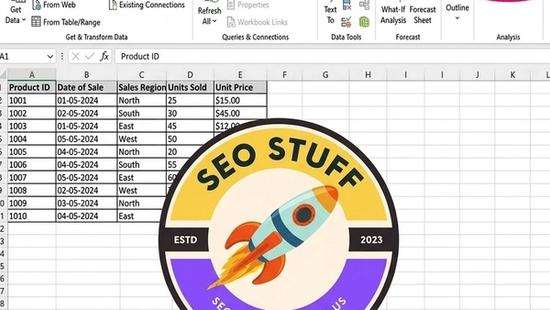
How to Get Data Analysis Toolpak in Excel (2026 Guide)
 Carlos Garcia5/20/2026
If you've heard about the Data Analysis Toolpak in Excel and gone looking for it under the Data tab — only to find it's not there — you're not alone. The Toolpak ships with most Excel installations but isn't enabled by default. You don't download it separately or buy it; you just turn it on inside Excel's add-in settings. This guide explains exactly how to get the Data Analysis Toolpak in Excel on Windows, Mac, and Excel for the Web in 2026, what it includes, what it doesn't, and what to do when the standard activation path doesn't work.
Free SEO + AI Search Audit. The Data Analysis Toolpak gives you a few clicks to advanced statistical tests. A free SEO + AI search audit gives you a few clicks to your visibility across Google AND every major AI search engine — ChatGPT, Claude, Perplexity, and Gemini. Run your free audit → to see where your site stands in 60 seconds.
What Is the Data Analysis Toolpak in Excel?
In simple terms, the Data Analysis Toolpak is a free Microsoft add-in bundled with Excel that adds a "Data Analysis" command to the Data tab, exposing a suite of statistical and engineering analysis tools. It includes regression, correlation, ANOVA, descriptive statistics, t-tests, F-tests, Fourier analysis, histogram, random number generation, moving average, exponential smoothing, sampling, rank and percentile, and more.
The Toolpak is not a separate purchase. It ships with Excel for Microsoft 365, Excel 2019, Excel 2021, Excel 2024, and most prior versions back to Excel 2007. It's disabled by default — you enable it through the Excel Add-ins manager.
There's also a Data Analysis Toolpak - VBA version that exposes the same functions for use in macros and VBA code.
How to Get the Data Analysis Toolpak on Windows
The standard activation path on Windows takes about a minute.
Step 1: Open Excel and Go to Options
Launch Excel. Click File → Options.
Step 2: Open the Add-Ins Manager
In the Options dialog, click Add-ins in the left sidebar.
Step 3: Manage Excel Add-Ins
At the bottom of the Add-ins panel, the Manage dropdown should show "Excel Add-ins." Click Go.
Step 4: Check Analysis Toolpak
In the Add-ins dialog, check the box next to Analysis ToolPak. Optionally also check Analysis ToolPak - VBA if you'll use it from macros.
Step 5: Click OK
Click OK. Excel installs the add-in (it's already on your disk; Excel just registers it).
Step 6: Verify the Data Analysis Button Appears
Switch to the Data tab in the ribbon. At the far right, you should now see a Data Analysis button. Click it to access the Toolpak's tools.
How to Get the Data Analysis Toolpak on Mac
The Mac workflow is similar but lives in a different menu.
Step 1: Open Excel
Launch Excel on macOS.
Step 2: Open the Tools Menu
In the menu bar at the top of the screen, click Tools → Excel Add-ins.
Step 3: Check Analysis ToolPak
Check the box next to Analysis ToolPak, then click OK.
Step 4: Confirm in the Data Tab
Switch to the Data tab in the ribbon. A Data Analysis button should appear on the right side of the ribbon.
Mac-Specific Note
The Mac version of the Toolpak has historically lagged behind Windows in feature parity. Some tools (notably Fourier analysis and certain regression options) have had Mac-specific bugs in past versions. If you need exact statistical parity with the Windows version, consider running Excel for Windows in a VM or using a Mac-compatible alternative like R, Python, or Statplus:mac.
How to Get the Data Analysis Toolpak in Excel for the Web
Excel for the Web (the browser version included with Microsoft 365) does not support the traditional Data Analysis Toolpak. The Toolpak is a COM add-in that runs in the desktop apps only.
For browser-based analysis, you have two paths:
Option 1: Use Excel for the Web's Built-In Statistical Functions
Functions like `LINEST`, `TREND`, `FORECAST`, `T.TEST`, `CORREL`, `STDEV.S`, `AVERAGE`, `CONFIDENCE.NORM` are available in formulas. You can build most basic statistical analyses with formulas alone.
Option 2: Switch to Desktop Excel
For any work that needs the full Toolpak, switch from Excel for the Web to the desktop app. Microsoft 365 users have both available by default.
Option 3: Use a Web Add-In Alternative
Microsoft AppSource has several third-party statistical add-ins that work in Excel for the Web. Quality varies; check reviews before installing.
How to Get Data Analysis Toolpak in Excel 2024 / Microsoft 365
The activation path in Excel 2024 and current Microsoft 365 versions is identical to the Windows steps above: File → Options → Add-ins → Manage: Excel Add-ins → Go → check Analysis ToolPak → OK.
Microsoft 365 users always have access to the Toolpak regardless of subscription tier (Personal, Family, Business Standard, Business Premium, Enterprise). It's not an Office 365 E5 feature or a paid extension.
How to Get Data Analysis Toolpak in Older Excel Versions
If you're still on Excel 2010, 2013, or 2016, the path is the same: File → Options → Add-ins → Manage: Excel Add-ins → Go → check Analysis ToolPak.
For Excel 2007: Office Button → Excel Options → Add-Ins → Go → check Analysis ToolPak.
For Excel 2003 and earlier: Tools menu → Add-Ins → check Analysis ToolPak. (Note that Excel 2003 is end-of-life and unsupported.)
Free SEO + AI Search Audit. Enabling Data Analysis Toolpak takes 60 seconds. A free SEO + AI search audit also takes 60 seconds — and shows you visibility across Google AND every major AI search platform. Get a free audit.
What's Inside the Data Analysis Toolpak
A quick tour of the 19 tools it adds.
Descriptive Statistics
Computes mean, median, mode, standard deviation, variance, kurtosis, skewness, and other descriptive stats for any data set in one click.
Histogram
Generates a frequency distribution and optional histogram chart from a data range with user-defined bins.
Regression
Linear regression with multiple predictors, including R², standard errors, t-statistics, p-values, ANOVA table, and residual plots.
Correlation and Covariance
Computes pairwise correlation or covariance matrices across multiple columns.
t-Test (Paired, Two-Sample Equal Variance, Two-Sample Unequal Variance)
Three t-test variants for comparing means of two samples.
Anova (Single Factor, Two-Factor With Replication, Two-Factor Without Replication)
One- and two-way ANOVA for comparing means across three or more groups.
F-Test for Variances
Tests whether two samples have equal variance.
z-Test for Means
z-Test when population standard deviation is known.
Moving Average
Calculates moving averages of a time series — useful for smoothing noisy data.
Exponential Smoothing
Time series smoothing with user-defined damping factor.
Fourier Analysis
Forward and inverse Fast Fourier Transforms for signal/frequency analysis.
Random Number Generation
Generates random numbers from uniform, normal, Bernoulli, binomial, Poisson, patterned, and discrete distributions.
Rank and Percentile
Computes ranks and percentile positions for each value in a data set.
Sampling
Pulls random or periodic samples from a data set.
When You Should Use the Toolpak vs Other Tools
The Toolpak is great for quick analyses but has limits.
Use the Toolpak If
You need standard parametric stats quickly, you're already in Excel, you want a reproducible click-driven workflow, or you're teaching basic statistics and want a GUI.
Use Excel Formulas If
Your analysis is simple enough to express in one or two formulas — `STDEV.S`, `T.TEST`, `LINEST` cover most basics without the Toolpak interface.
Use R or Python If
You need anything beyond standard parametric tests — non-parametric methods, mixed-effects models, time series with seasonality, machine learning, Bayesian inference. The Toolpak's depth ends quickly above the textbook stats curriculum.
Use Power Query or Power Pivot If
Your bottleneck is data prep, not analysis. Toolpak takes clean tabular data as input; getting your data into that shape is often the harder part.
Use a Stats Package (SPSS, JMP, Stata) If
You're in a regulated environment or academic setting that requires specific statistical methodology documentation. Excel's Toolpak isn't always accepted as the primary tool for peer-reviewed research.
Common Problems Enabling the Toolpak
A few cases where the standard path doesn't work.
"Analysis Toolpak" Doesn't Appear in the Add-Ins List
Most often this happens with Excel installs that excluded the Toolpak during setup (rare on Microsoft 365, more common on older standalone Office installs). Fix: re-run the Office installer and choose Add or Remove Features, then enable Analysis Toolpak.
Toolpak Is Checked But "Data Analysis" Button Doesn't Show
Restart Excel. If still missing, uncheck the Toolpak, click OK, reopen the Add-ins dialog, and re-check it. The forced reload usually fixes ribbon registration.
Excel for the Web Doesn't Show the Option
Expected behavior — the Toolpak isn't supported in the browser. Switch to desktop Excel.
Excel for iPad / iPhone Doesn't Show the Option
Also expected — the Toolpak is desktop-only. Use desktop Excel or an alternative iOS-friendly stats app.
"Cannot Run the Macro" Error
If you're running Analysis Toolpak - VBA macros and getting errors, confirm both the regular Analysis Toolpak AND the VBA version are checked in the Add-ins dialog. Some macros require both.
Toolpak Disappears After Update
Office updates occasionally reset add-in registrations. Re-enable via File → Options → Add-ins → Go.
Final Thoughts
Getting the Data Analysis Toolpak in Excel isn't a download or purchase — it's a checkbox in Excel's Add-ins manager. Five seconds of clicking unlocks 19 statistical tools that cover most everyday business analytics needs. It's free, ships with virtually every modern Excel installation, and works on Windows, Mac (with some feature lag), and any desktop version from Excel 2007 onward. For browser users, the Toolpak isn't available — switch to the desktop app or build the same analyses with Excel formulas.
Beyond statistical analysis, the bigger 2026 question for most analytics-driven marketing teams is whether their content is actually being found by the right audience. Increasingly, buyers use AI search engines like ChatGPT, Claude, Perplexity, and Gemini for product recommendations and decision support — and most marketing teams have zero measurement of how they show up there. While you're running regressions in Excel, you may be invisible in the AI answers shaping more and more buying decisions. Run a free audit to see exactly where your site performs across Google AND every major AI search platform — and which fixes will move your traffic the fastest this quarter.


