
How to Delete a Facebook Business Page in 2026 (Step-by-Step Guide)
 Carlos Garcia5/15/2026
If you've ended up with a Facebook Business Page you no longer want, maybe a project that didn't take off, a business you sold, or a duplicate page that needs cleaning up, deleting it is straightforward, but Meta has changed the process several times and the option you're looking for isn't always where the old tutorials say it is. This article walks through exactly how to delete a Facebook Business Page in 2026, including how to do it from Meta Business Suite, what happens after deletion, and the alternatives (deactivating, merging, transferring ownership) you might want to consider first.
Free SEO + AI Search Audit. Cleaning up your old Facebook presence is good hygiene. But your active digital presence — how your business shows up in Google AND in AI search like ChatGPT, Claude, Perplexity, and Gemini — is what actually drives new customers. Run your free audit → to see exactly where you stand across every major search and AI platform in 60 seconds.
What Happens When You Delete a Facebook Business Page
Deleting a Facebook Business Page is permanent. After a 14-day grace period during which the page is "scheduled for deletion" but recoverable, Facebook permanently removes the page and all its content — posts, photos, videos, reviews, follower list, ad history, insights data, everything.
A few important things to know before you proceed:
- The 14-day grace period is your only safety net. If you change your mind within 14 days, you can cancel the deletion and the page returns intact. After 14 days, recovery isn't possible.
- Followers are lost permanently. If you've built up a follower base, deletion erases the connection.
- Linked Instagram accounts aren't deleted — they're just disconnected from the Page. Your Instagram remains.
- Past ads and historical insights data are gone. If you've run paid campaigns from the Page, the performance data disappears with it.
- You must be an admin of the Page to delete it. Editors, moderators, and other roles can't initiate deletion.
If any of this gives you pause, consider one of the alternatives covered later in this article before you commit.
How to Delete a Facebook Business Page (Step-by-Step)
Meta has consolidated most Page management into Meta Business Suite as of 2026, though deletion can still be triggered from Facebook directly. We'll cover both paths because they show up slightly differently depending on whether you're on desktop or mobile.
Method 1: Delete from Meta Business Suite (Recommended)
This is the cleanest path in 2026 — Meta has gradually moved Page management to Business Suite and this is where most admins now operate.
- Go to business.facebook.com and log in with the personal account that has admin access to the Page.
- In the left sidebar, click Settings (gear icon).
- Under "Business Assets" or "Accounts," find and click Pages.
- Select the Page you want to delete from the list.
- Click Page Settings (or "More" → "Settings" depending on your view).
- Scroll down to find Remove Page or Delete Page. The wording varies by region and account type but it's usually near the bottom of the General settings.
- Click Delete and confirm. The Page is now scheduled for deletion. You have 14 days to change your mind.
Method 2: Delete from Facebook Directly
If for some reason Business Suite isn't accessible, you can still trigger deletion from facebook.com:
- Go to facebook.com and log in.
- Navigate to the Page you want to delete.
- Click Settings in the left sidebar (or the gear/three-dot menu, depending on your layout).
- Click General if it isn't already selected.
- Scroll to the bottom and find Remove Page.
- Click Permanently delete [Page Name], then Delete.
- Confirm. The 14-day grace period begins.
Method 3: Delete from the Mobile App
You can also delete from the Facebook mobile app, though it's clunkier:
- Tap the menu icon (three lines) and go to Pages.
- Select the Page you want to delete.
- Tap Settings at the top right.
- Scroll to General Settings → Remove Page.
- Tap Permanently Delete Page and confirm.
Whichever method you use, the result is the same: the Page enters a 14-day deletion queue. During that window, you'll still see it in your Page list with a note that it's scheduled for deletion, and you can cancel by visiting the Page settings and selecting "Cancel deletion."
Free SEO + AI Search Audit. Deleting an old Facebook Page closes one chapter. The next is making sure your current digital presence is actually discoverable. Run a free audit to see how your business performs in Google AND in ChatGPT, Claude, Perplexity, and Gemini — the four AI search engines now driving real referral traffic in 2026.
Alternatives to Deleting
Before you delete, consider whether one of these alternatives fits your situation better.
Unpublish the Page (Reversible Pause)
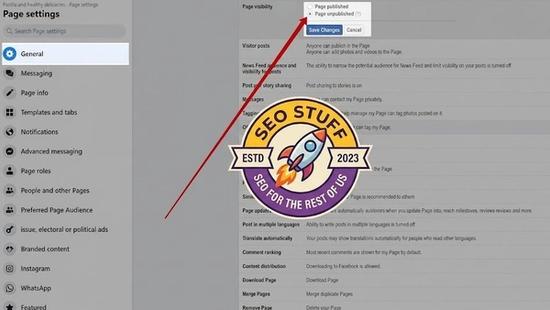
If you're not 100% sure you want to delete, unpublishing is a safer middle ground. The Page becomes invisible to everyone except admins — visitors see nothing, search engines can't find it — but the content, followers, and insights all stay intact, ready to be republished if you change your mind. To unpublish: Page Settings → Visibility → Unpublish Page.
Transfer Ownership
If you're selling or stepping away from the business but the Page still has value, transfer it to a new admin instead of deleting. In Business Suite: Settings → People → Add People, give the new owner Admin access, then remove yourself. The new admin keeps the followers, content, and ad history.
Merge with Another Page
If you have duplicate Pages for the same business — common after rebrands or unintentional duplicates — Facebook lets you merge them. The follower counts combine, the content from the page being merged moves over (in most cases), and you end up with one clean Page. Eligibility requires both Pages to represent the same business, have similar names, and have the same admin. Settings → Merge Pages.
Convert a Personal Profile to a Page
If the "Page" you want to delete was actually a personal profile being used as a business presence (an old practice that violates Facebook's rules), you have the option to convert the profile to a proper Page first, keeping the friends/followers as Page followers.
When Should You Delete a Facebook Business Page?
The cleanest reasons to delete:
1. The Business No Longer Exists
If the company is closed, dissolved, or otherwise no longer operating, deleting the Page prevents confusion for customers searching for you and prevents anyone from impersonating or hijacking the dormant Page.
2. The Page Is a Duplicate You Can't Merge
If you have a duplicate Page and merging isn't possible (different business categories, mismatched admins, etc.), deletion is the cleanest path.
3. The Page Has Been Hacked or Compromised
If you've lost access or someone unauthorized has admin rights, deletion may be the only way to fully shut it down — assuming you can regain enough admin access to trigger the deletion.
4. The Page Is Damaging Your Brand
Bad reviews, irrelevant content from a previous direction, or a positioning you've abandoned can sometimes hurt more than help. If the Page's history isn't recoverable and the brand association is harmful, deletion is reasonable.
5. You're Consolidating to a Single Global Page
Multinational brands sometimes spawn dozens of country- or region-specific Pages over time. Consolidating into one global Page (with regional targeting) is now a common strategy, and the unused regional Pages get deleted.
Free SEO + AI Search Audit. A consolidated, clean digital footprint is the goal. But the bigger question for most businesses in 2026 is: when potential customers ask ChatGPT or Perplexity about your category, does your business get mentioned? Get a free audit of how your site performs in Google AND every major AI search platform — and the highest-impact fixes to make this quarter.
Limitations and Common Issues
You need to be an admin. No exceptions. If you're an editor or other lower role, you can't initiate deletion. Get an admin involved or have an admin promote you first.
Deletion can be delayed by ad obligations. If the Page has active ads or unpaid balances on the ad account, you may have to settle those before Facebook lets you proceed. Pause ads and confirm billing is clean.
Linked apps may continue to reference the Page. Third-party apps (review tools, scheduling tools, CRMs) that integrate with the Page may continue to attempt to pull data and throw errors. Remove the Page from those integrations before deletion.
Custom URL vanishes immediately. If your Page used a custom username (facebook.com/yourbrand), that handle is released the moment deletion is initiated — not after the 14-day grace period. If you cancel deletion mid-window, you may not be able to reclaim the same handle.
Pages with verification badges lose verification permanently. If you re-create the Page later, you'll have to re-apply for verification from scratch.
Business Manager (Meta Business Suite) connections matter. If the Page is linked to a Business Manager account, that account may need to formally remove the Page before deletion completes cleanly. Otherwise you can end up with orphaned references in Business Manager.
Final Thoughts
Deleting a Facebook Business Page in 2026 takes about 90 seconds once you know where the button is, but Meta has made it harder to find on purpose — the goal is to slow you down enough that you reconsider. That's actually fair: deletion is permanent, and unpublishing or transferring ownership is the right call surprisingly often.
Whichever path you take, remember that consolidating your digital footprint is only half the work. The other half is making sure the presence you do keep is actually findable when customers go looking. In 2026, that means showing up not just in Google but in ChatGPT, Claude, Perplexity, and Gemini — where buyers increasingly ask for recommendations before they ever open a browser tab. Run a free audit to see exactly where your business stands across Google AND every major AI search platform — and which fixes will move the needle fastest this quarter.


